FOR TEACHERS
Teachers spend a substantial share of every working week on documentation that isn't teaching. This page is a practical guide — workflows, honest limits, deployment notes, and a quick start — to whether voice dictation is worth your time.
Free to install. No credit card. 20 minutes of free dictation per month, or unlimited on the Personal/Educational plan.

Documentation has quietly become one of the largest categories of teacher work that doesn't involve students. Multiple national workforce surveys have found teachers working well above their paid hours, with several hours of every week absorbed by administrative writing — report comments, individual education plan documentation, parent communication, lesson and unit planning, behavioural notes, and the dozens of small written records that feed into student support meetings.
Voice dictation doesn't change the volume of that work. What it can change is the production speed of the parts that involve writing extended prose. Report and progress-report comments are the clearest case. Parent emails are the second. Reflective notes — the kind teachers most often skip under time pressure — are the third.
What dictation will not do is fill in matrix-style planning grids, build assessment rubrics, write your IEP review schedule, or remove the cognitive work of thinking about a student before you write about them. The sections below are an honest sketch of where it earns its keep and where it doesn't.
If you teach a class of 25 and need to write a personalised paragraph for each student, you're looking at producing roughly 1,500 to 2,500 words of considered prose against a deadline. Dictation suits this work for one specific reason: it separates the thinking about a student from the typing of the comment. Most teachers who shift this workflow to voice describe it as switching from "typing a comment" to "talking about the student" — and the resulting writing tends to be warmer and more specific.
A practical workflow that scales:
A teacher comfortable with dictation typically completes a full year-level's worth of comments in around half the time of typing the same comments — though we'd encourage you to time your own first session before trusting any general claim about speed.
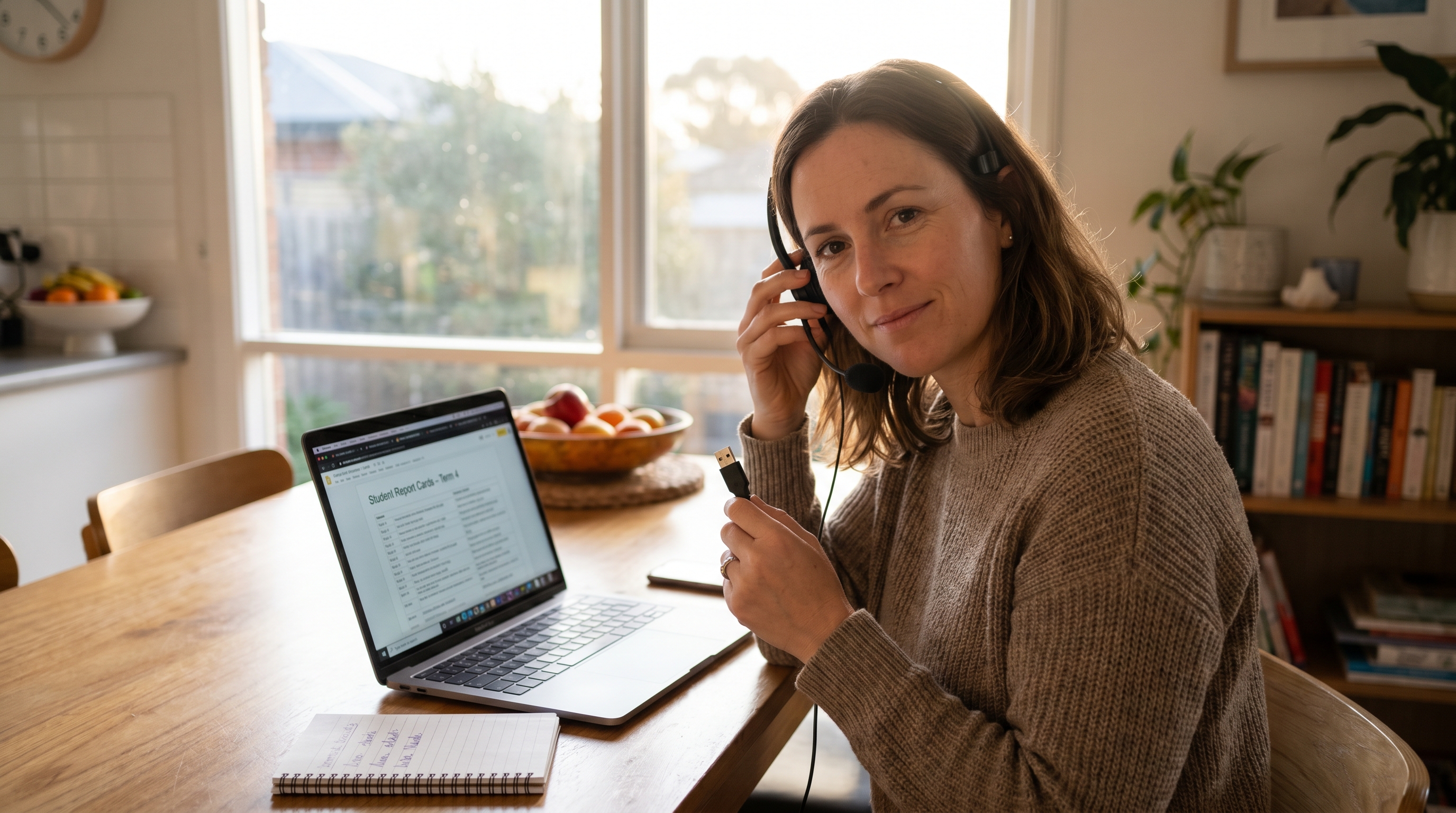
Documentation for students with disabilities or additional needs is one of the largest sources of admin work for teachers — and one of the most consequential. Names vary by country (IEPs, 504 plans, EHCPs, ILPs, and other national equivalents), but the underlying work is the same: contemporaneous, specific evidence of the adjustments you're providing and how the student is responding to them.
Voice dictation fits this work for two reasons. First, evidence is usually easier to describe than to write. "Today during the Year 7 maths lesson I provided a scaffolded worksheet and read each problem aloud for student X. Student X attempted all problems independently after the read-aloud support." That sentence is faster to speak than to type for most people, and it carries the contemporaneous detail support documentation actually needs.
Second, support documentation rewards consistency of phrasing across categories of adjustment. Saved templates for each adjustment type let you keep the framing consistent across the year and across students, while the personalised detail is dictated in.
The same approach extends to behaviour plans, learning goal reviews, welfare and wellbeing notes, and the small chronicle entries that feed into student support team meetings.
Parent emails — particularly the difficult ones — are something most teachers write slowly because they're being careful about tone. Dictation can actually help this rather than hinder it. Teachers regularly report that speaking an email forces a more natural conversational register than typing does, and the resulting message reads warmer to the parent.
Patterns we see working:
Dictation works inside Outlook, Gmail, the web versions of both used by school accounts, and the messaging panes inside Microsoft Teams for Education, Google Classroom, Canvas, Schoology, and any other LMS where your cursor can sit in a text field.
Unit and lesson planning is the most variable of the four workflows because it depends heavily on whether you're building from scratch, adapting last year's plans, or drawing on faculty scope-and-sequence documents.
Dictation works well for:
Dictation suits planning less well when the work is mostly clicks and dropdowns rather than prose: filling matrix-style planning grids, building rubric tables, or stepping through a structured planning template field by field.

Speech Recognition Cloud is cursor-based dictation software for Windows 10 and Windows 11. It is not a meeting transcriber, an ambient AI scribe, or a recording tool — it converts live speech to text at the cursor position in whatever Windows application you're working in.
What that means in practice for a teacher:
Because it operates at the operating-system level rather than as a browser extension or app integration, Speech Recognition Cloud works across all of these without per-platform setup. The trade-off is that it's a Windows-only tool: it doesn't currently run on macOS or ChromeOS, which is a real limitation if you're on a school-issued MacBook or Chromebook.
For pricing details, see the pricing page, or read the dedicated school and education licensing section further down.
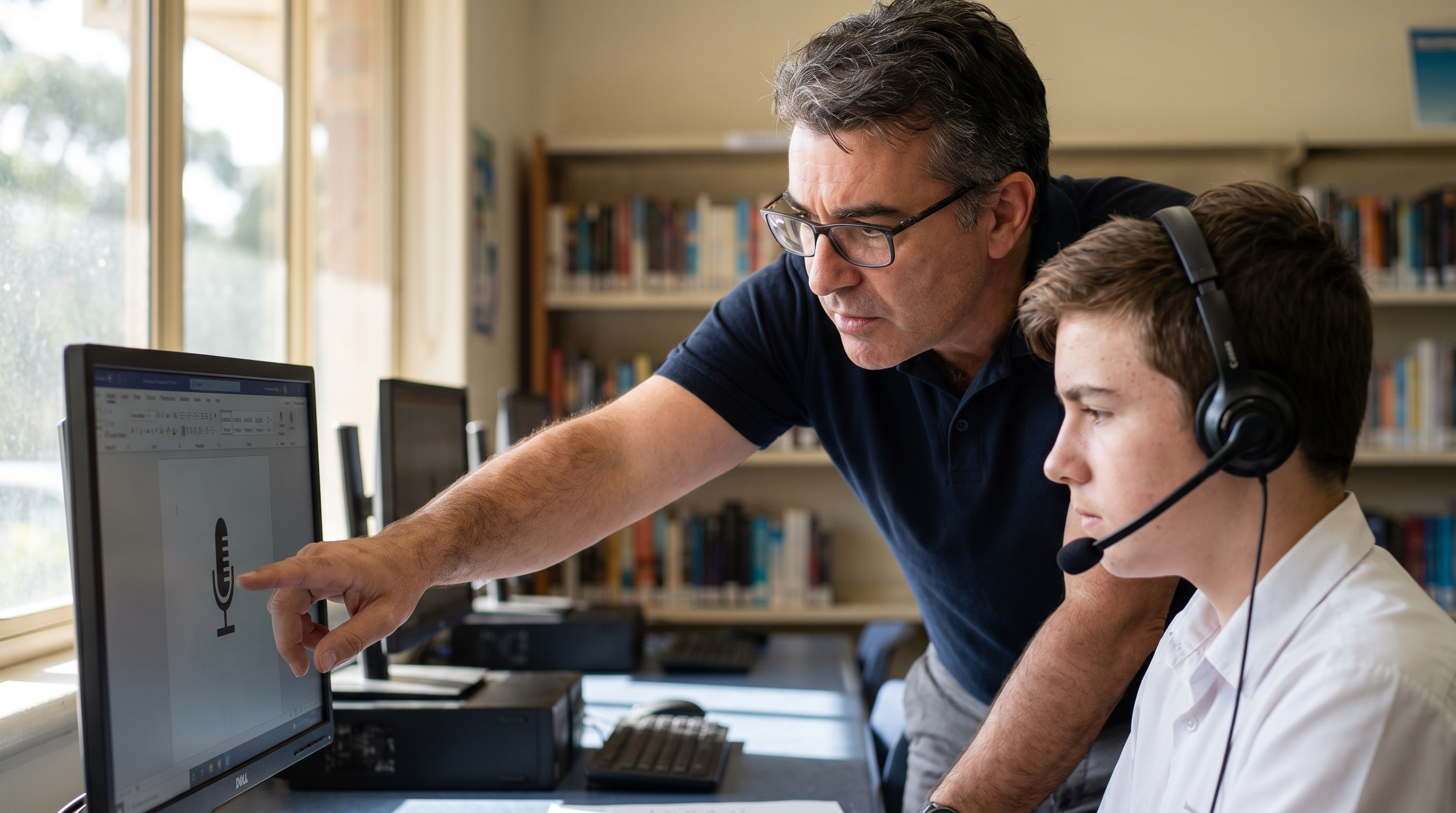
The same software that helps a teacher with report comments helps students with dyslexia, dysgraphia, or motor difficulties get their thinking onto the page. The mechanics are the same — speech becomes text at the cursor — but the purpose and setup change.
Accessibility legislation varies by country — the IDEA and Section 504 in the US, the SEND Code of Practice in England, the Disability Standards for Education in Australia, and equivalent frameworks elsewhere — but the underlying expectation is the same: schools provide reasonable adjustments for students with disabilities, and speech-to-text is one of the most-cited assistive tools across the lighter end of those frameworks all the way through to students with severe written-language difficulties.
If you're considering speech-to-text as a classroom adjustment for individual students rather than as a teacher productivity tool, our accessibility-focused page covers microphone setup in a shared classroom, the transition from a student's familiar tools, and the writing tasks where dictation typically helps a student most. The parallel page for students themselves is also worth pointing senior students to — particularly if you're suggesting dictation as a study tool rather than a classroom accommodation.
Voice dictation is a productivity tool. It is not a fix for teacher admin overload, and it would be dishonest to suggest otherwise.
The admin burden on teachers is structural. It comes from accountability frameworks, data-collection requirements, evolving curriculum documentation, and parent-communication expectations that no individual tool can shift on its own. The relief dictation offers is real but bounded — it changes how fast you can produce a given paragraph, not how many paragraphs you're required to produce.
For some teachers that's enough to claw back an hour or two a week, which compounds across a term. For others — particularly teachers whose admin time is dominated by data entry into structured fields rather than prose — the gains are smaller. We'd encourage you to try it for a fortnight on the workflows that actually involve writing, and form a view based on your own experience rather than a vendor's claim.
If the dictation experiment goes well, the time you free up is yours — for marking, for planning, for the students who need an extra fifteen minutes, or for going home before dark. That's the honest framing.
Three questions worth asking your school's IT lead before installing any speech recognition tool on a school-issued device:
The relevant data-protection frameworks vary by country: FERPA in the United States, GDPR across the EU and UK, the Australian Privacy Principles in Australia, PIPEDA in Canada, and equivalent regimes elsewhere. None of them prohibit voice dictation; they shape how it should be used. A USB headset is usually a better choice than a built-in laptop microphone in a shared staff room — directional audio reduces both background-noise pickup and how much your colleagues can overhear.
A genuine four-step walkthrough for a teacher new to dictation.
Install Speech Recognition Cloud (the free tier is fine to start with). Plug in a USB headset if you have one — the laptop's built-in microphone works but is noisier in a staff room. Allow microphone access when Windows prompts.
Open your school's report or grade-book platform, or a fresh Word document if you'd rather draft and paste later. Click into a comment box for a specific student. Have your assessment notes visible alongside it — on paper, in a second window, or in your gradebook.
Start dictation. Describe the student to yourself in 2 to 3 sentences — for example: 'Sarah has shown strong progress in narrative writing this semester, particularly in her use of descriptive language. Her next focus is sentence variety, which we'll work on next term through targeted writing tasks.' Speak naturally. You can insert punctuation by saying 'comma' and 'full stop', or let the automatic punctuation handle most of it.
Read the comment back. Edit by voice or by keyboard. Move to the next student. The first three comments will feel awkward; by the tenth, most teachers say it feels normal; by the twenty-fifth, you're meaningfully faster than typing.
If after a full session of 25 comments it still feels slower than typing, dictation may not suit your style — and that's a useful thing to find out after one trial. For more setup help, see the getting-started walkthrough.
Student names, school-specific terminology, and any subject-area vocabulary that doesn't transcribe correctly on first pass — add them to your personal dictionary as you go. Five minutes of dictionary-building in your first session saves hours of corrections across the term.
Whatever boilerplate your school requires — opening lines on report comments, sign-offs on parent emails, IEP adjustment framing — save it as a named template you can insert with a voice command. The personalised middle of each comment is what you dictate; the standard scaffolding is one command.
Don't try to dictate a perfect first sentence. Dictate the rough version of the whole comment or email, then read it back and tighten the bits that need tightening. Trying to speak polished prose in real time slows almost everyone down.
A USB headset is the practical default. It picks up your voice cleanly, reduces background staff-room noise, and keeps your dictation private from colleagues sitting nearby. The laptop's built-in microphone works for solo office use but degrades quickly in a noisy environment.
Dictation handles reflective writing beautifully and structured forms badly. If your end-of-week reflection is a free-text paragraph, dictate it. If it's a matrix of dropdowns and rating scales, type it. Knowing the difference will save you frustration.
Almost certainly, yes. Speech Recognition Cloud dictates at the cursor in any Windows application — that includes US platforms like PowerSchool, Infinite Campus, Schoology, and Skyward; UK platforms like SIMS, Arbor, and Bromcom; Australian platforms like Sentral and Compass; and any other school management system you can click into and type into. It doesn't integrate with the platforms specifically — it operates at the operating-system level — which is why it works across all of them without per-platform setup.
Yes. The standard workflow is to save your school's required opening and closing phrasing as templates, then dictate the personalised middle of each comment. Student names that don't transcribe correctly on first pass can be added to a personal dictionary so they are transcribed correctly thereafter. Templates and custom vocabulary are available on the Personal/Educational and Professional plans.
The same software does the same job. Whether it's the right tool for an individual student depends on the student, the writing task, and the classroom context. Our accessibility page covers microphone setup in shared classrooms, the transition from a student's familiar tools, and the writing tasks where dictation typically helps a student most.
Audio is processed in memory only and immediately erased. Speech Recognition Cloud never stores your audio or transcripts, and our staff cannot access them. Dictation history remains only on your own computer. That said, the relevant frameworks vary by jurisdiction — FERPA in the US, GDPR in the EU and UK, the Australian Privacy Principles in Australia, plus your school district or system's information-handling policy. Before installing on a school-issued device we recommend reading our privacy statement alongside your school's IT acceptable-use policy.
Honestly, it depends. Teachers with dysgraphia, RSI, or processing styles that suit external verbalisation often find dictation transformative. Teachers whose disfluency means speaking is more cognitively expensive than typing often don't. The most reliable answer is to try it for a week on a low-stakes workflow — class newsletters, parent reminder emails — and see whether the experience feels easier or harder than typing. Either answer is useful.
A USB headset is the practical default. It picks up your voice cleanly, reduces background noise, and keeps your dictation private from colleagues sitting nearby. The laptop's built-in microphone works for solo office use but degrades quickly in a noisy environment. Anything in the $40–$100 range from a reputable brand is usually fine — you don't need an expensive headset to get good results.
Windows 10 and Windows 11 only. If you're on a school-issued MacBook or Chromebook, Speech Recognition Cloud isn't currently an option on that device. As a starting point on macOS, Apple's built-in Dictation is worth a look — it's a more limited tool but it's free and on the device.
Word's built-in dictation works inside Word, Outlook, and some other Microsoft 365 apps. Google Docs voice typing works inside Google Docs in Chrome. Speech Recognition Cloud works at the cursor in any Windows application — including the school management systems that neither Microsoft's nor Google's dictation can reach. It also includes a templates system designed for repeated phrasing, which is the workflow that matters most for report writing.
For more setup answers, see the support FAQ.
Speech Recognition Cloud is available on individual plans suitable for a single teacher, and on volume licensing suitable for a whole department, faculty, or school. The Personal/Educational annual plan covers most individual teachers who want unlimited dictation; school-level deployment is also available for IT departments rolling it out across classrooms.
For broader voice-technology procurement for schools — including microphones, classroom Dragon licensing for students with disabilities, NDIS-funded student deployments, and Learning Support teacher training — our parent business operates a dedicated education licensing collection at Voice Recognition Australia, which has been supplying Australian schools, universities, and Learning Support teachers for over 25 years.
See the pricing page for current individual plans, or contact us for school volume quotes.
REGIONAL CONTEXT
Speech Recognition Cloud is built and supported by an Australian company with 28 years of speech-technology deployment across Australian schools, hospitals, courts, and government departments. A few notes specifically for teachers working in the Australian system:
Australian school platforms. The cursor-based approach works inside Sentral (report comments, behaviour notes, the welfare module), Compass (chronicle entries, learning task feedback, parent-portal communications), Edval, EdSmart, and other Australian school management systems — anywhere the platform presents a text field.
NCCD evidence. The Nationally Consistent Collection of Data on School Students with Disability rewards contemporaneous, specific evidence and consistent phrasing across the four levels of adjustment — support provided within quality differentiated teaching practice, supplementary, substantial, and extensive. Saved templates for each level let you keep the framing consistent while the personalised detail is dictated in. The same approach extends to IEPs, IBMPs, and the chronicle entries that feed into student-support team meetings.
Australian Curriculum v9. Australian Curriculum v9.0 is the current published F-10 curriculum (with NSW, WA, and Victoria following their own implementation paths), and most schools are continuing their phased rollout through 2026. Dictation works well for annotating existing unit plans, drafting learning intentions and success criteria, and writing context paragraphs that connect a lesson to v9 content descriptors.
Privacy. The Australian Privacy Principles and the Notifiable Data Breaches scheme are the relevant frameworks for handling student information on a school-issued device. Our privacy statement documents exactly how audio and transcripts are handled — short version: audio is processed in memory and immediately erased, transcripts stay on your own computer.
Free for 20 minutes a month, or unlimited on the Personal/Educational plan at $99 USD per year.
Download Speech Recognition Cloud for Windows